What is an AI object remover?
An AI object remover is an online photo editor that erases a selected element from an image and uses generative AI inpainting to reconstruct the background behind it. You brush over the unwanted object; the AI analyses the surrounding pixels, textures and lighting and synthesises matching content in the gap, so the finished photo looks like the object was never in the frame.
That is what separates a generative object remover tool from a clone stamp or healing brush. Older photo editing tools copy pixels from elsewhere in the picture, which works on a flat wall and falls apart on grass, brickwork or foliage. Generative AI creates new texture that matches the scene, so you can use AI to remove any object — a stray tourist, background clutter, a logo, unwanted text — and still get a believable result.
Last updated: August 23, 2026 · Runs in any browser · Full-resolution downloads
A magic eraser built to erase objects, not smudge them
Three things decide whether object removal looks convincing: how the gap is filled, how precisely the eraser tool lets you select, and what resolution you get back.

Generative AI inpainting
The AI reads the pixels, textures and lighting around your selection, then generates matching background in the gap — so the erased object leaves no smudge, blur or clone-stamp patch behind.
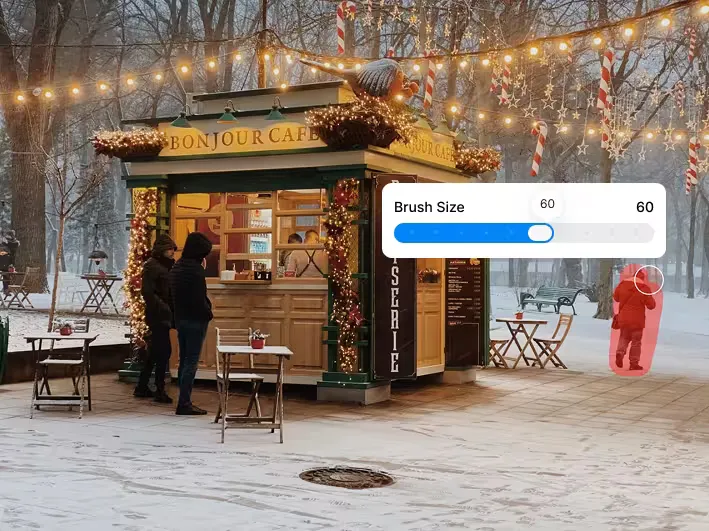
Precision brush with adjustable brush size
Use the brush to paint over whatever you want to remove. Adjust the brush size up for a whole photobomber or down for a wire or a blemish, and undo any stroke before you run the eraser.
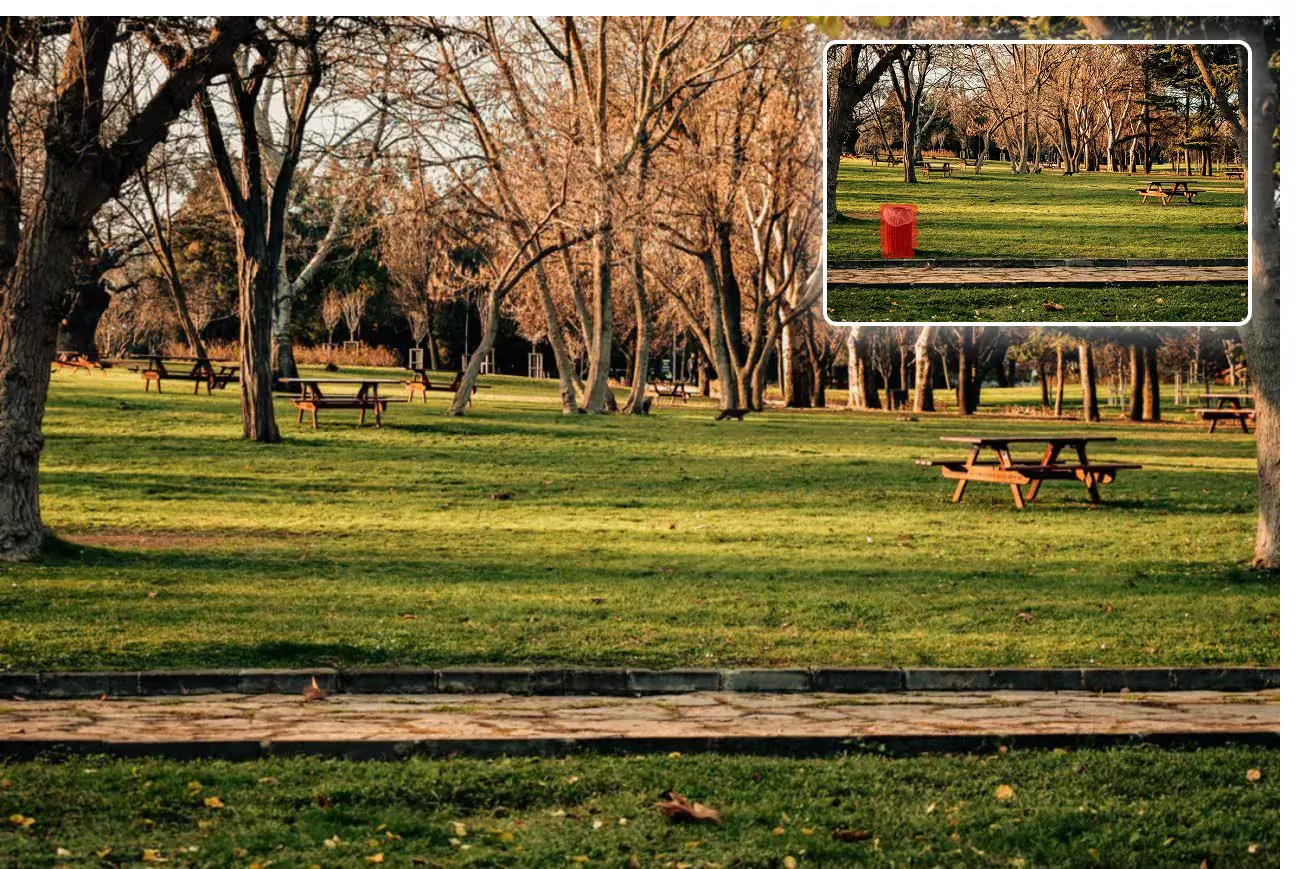
Full-resolution, watermark-free output
Your edit comes back at the resolution you uploaded, with no watermark stamped on it and full commercial rights — on every plan, including the free tier.
Erase unwanted objects and keep the rest of your photo
Only the region you brush is regenerated. Everything else in the frame — your subject, the colour grade, the grain — comes back exactly as you uploaded it.
How to remove an object from photo with AI, and rebuild the background
When you brush over an unwanted object, the strokes become a mask — a black-and-white map telling the model which pixels to discard and which to trust. Everything outside the mask is context; everything inside it is a hole to fill.
The inpainting model then generates new pixels for the masked region, conditioned on what surrounds it. It is not copying a nearby patch: it predicts what the scene most plausibly looks like there, continuing edges through the gap, matching texture frequency, and keeping the direction and softness of the existing light. In practice, removing an object from photo with AI takes under ten seconds.
The reconstruction is composited back into the original at full resolution, so only the masked area changes. That is why a generous mask helps — a boundary that clips the object's edge leaves a sliver of the original for the model to blend around, and that sliver is what reads as a ghost outline.
How to remove objects from photos online in three steps
Upload a photo, brush over the unwanted object, and download your image — three steps, no photo editing experience required.
Upload the photo you want to edit
Drop in a JPG, PNG or WebP up to 10 MB, or upload one from your device. The editor opens with your image loaded and the eraser ready.
Use the brush to paint over the object
Adjust the brush size and paint over what you want gone, then click Erase. Cover the object plus a small margin of background so the AI knows exactly where it ends.
Download your image
The AI erases the selection and reconstructs the background. Download your image at full resolution — no watermark, full commercial rights.
What people remove: clutter, watermarks, blemishes and photobombers
The same brush-and-erase workflow will clean up images of almost any kind, from a stranger in a holiday shot to a cable behind a product photo.
Remove people from photos and travel photos
Erase people who wandered into your landmark shot so the landscape stays the subject. It works on an unwanted person in the foreground as well as a crowd behind you, which makes it useful for travel photos and family photos alike.
Remove power lines and wires from property shots
Clean power lines, poles and antennas out of exterior listing photos. Thin objects against sky are the easiest case for AI inpainting, so you can quickly remove them with a single pass.
Remove reflections and logos from product images
Remove distracting reflections, a third-party logo you have the rights to edit, or incidental text from product surfaces to get clean, catalogue-ready product images for an online store.
Remove blemishes and photo retouch touch-ups
Brush out a spot, a stray hair or a temporary mark. Small selections give the AI plenty of surrounding skin to match, so light photo retouch work needs no desktop software.
Remove text, date stamps and unwanted details
Clear burned-in date stamps from old digital photos, or captions and overlays from screenshots. For text-heavy images our dedicated text remover is purpose-built, and the watermark remover handles licence marks you own.
Clean up product photo backgrounds for e-commerce
Delete props, cables and background clutter behind a product so the item is the undisputed focus — without re-shooting or cutting the subject out of its background entirely.
A photo eraser that removes unwanted objects and helps you clean up photos
Most free tools to remove unwanted objects cost you something else — a watermark, your resolution, or an install. Here is where ImgGen stands on each.
No watermark on your output
ImgGen never brands a result — on any plan, including free. What you download is the clean edit, ready to publish.
Nothing to install
It runs in the browser, so you can instantly remove an object without a desktop app, a plugin, or a subscription to a creative suite.
Original resolution preserved
The edited image comes back at the resolution you uploaded. No silent downscaling on the free tier, and no re-compression of the untouched areas.
Works in mobile browsers
Open it in Safari on iPhone or Chrome on Android and brush with your finger to easily remove an object on the move. There is no separate app to download.
Handles complex backgrounds
Grass, brickwork, foliage, water and gradients are where clone-stamp tools fail and generative fill wins, so you can effortlessly remove any unwanted objects even on busy scenes.
AI object remover vs Photoshop, Snapseed and magic eraser apps
Photoshop's Generative Fill is the most capable option and the most expensive. Snapseed's healing brush is free and mobile-only. Most standalone magic eraser tool apps trade quality or a watermark for convenience.
| ImgGen | Photoshop Generative Fill | Snapseed Healing | Generic eraser apps | |
|---|---|---|---|---|
| Install required | No — browser | Yes — desktop app | Yes — mobile app | Yes — mobile app |
| Cost | Free to start, $9.99/mo | From $22.99/mo | Free | Free with paid unlocks |
| Fill method | Generative inpainting | Generative inpainting | Patch & clone | Varies, often clone |
| Complex backgrounds | Handled | Handled | Struggles | Struggles |
| Large objects | Handled | Handled | Small marks only | Mixed |
| Watermark on output | Never | None | None | Common on free tier |
| Output resolution | Original | Original | Original | Often downscaled |
| Learning curve | Minutes | Steep | Low | Low |
| Commercial rights | All plans | Licence-dependent | Yes | Varies |
Competitor pricing and capabilities as published by each vendor in August 2026. Product names are trademarks of their respective owners.
Specifications of this AI photo editor
The limits that actually apply when you upload. If a photo is larger than the maximum, resize or compress it first — our image compressor does both in the browser.
Compress an image first →| Supported formats | JPG / JPEG, PNG, WebP |
|---|---|
| Maximum file size | 10 MB per upload |
| Maximum dimensions | 4,000 px on the longest side |
| Output resolution | Same as the uploaded original |
| Branding on output | None, on every plan |
| Selection method | Adjustable brush mask |
| Typical processing time | Under 10 seconds per pass |
| Removes | Objects or people, text, logos, blemishes |
| Commercial use | Permitted on all plans, free included |
| Runs on | Any modern desktop or mobile browser |
Tips to remove an object cleanly
Most disappointing removals come down to how the mask was drawn, not to the model. Use the eraser to remove unwanted people or objects one at a time and the fill holds up.
Brush slightly past the object's edge
Leave a small margin of background inside your selection. It gives the model an unambiguous boundary and stops a faint outline of the original object from surviving the fill.
Remove one object per pass
Run separate passes rather than masking everything at once. Each pass gets the model's full attention on one region, which means fewer artefacts and cleaner unwanted details.
Avoid objects touching your subject
When the unwanted object overlaps your main subject, the AI has to guess what the subject looks like underneath. A visible gap between the two produces far more reliable results.
Remove objects from pictures on your phone, tablet or laptop
The object remover is a web tool, so the same editor opens in Safari on an iPhone, Chrome on Android, or any desktop browser. Use the brush with a finger or a mouse — there is nothing to install and nothing to keep updated.
Sign in and your edits and remaining credits follow you between devices, so you can start erasing objects from images on your phone and finish editing the photo online on a bigger screen. Most passes erase objects in seconds.
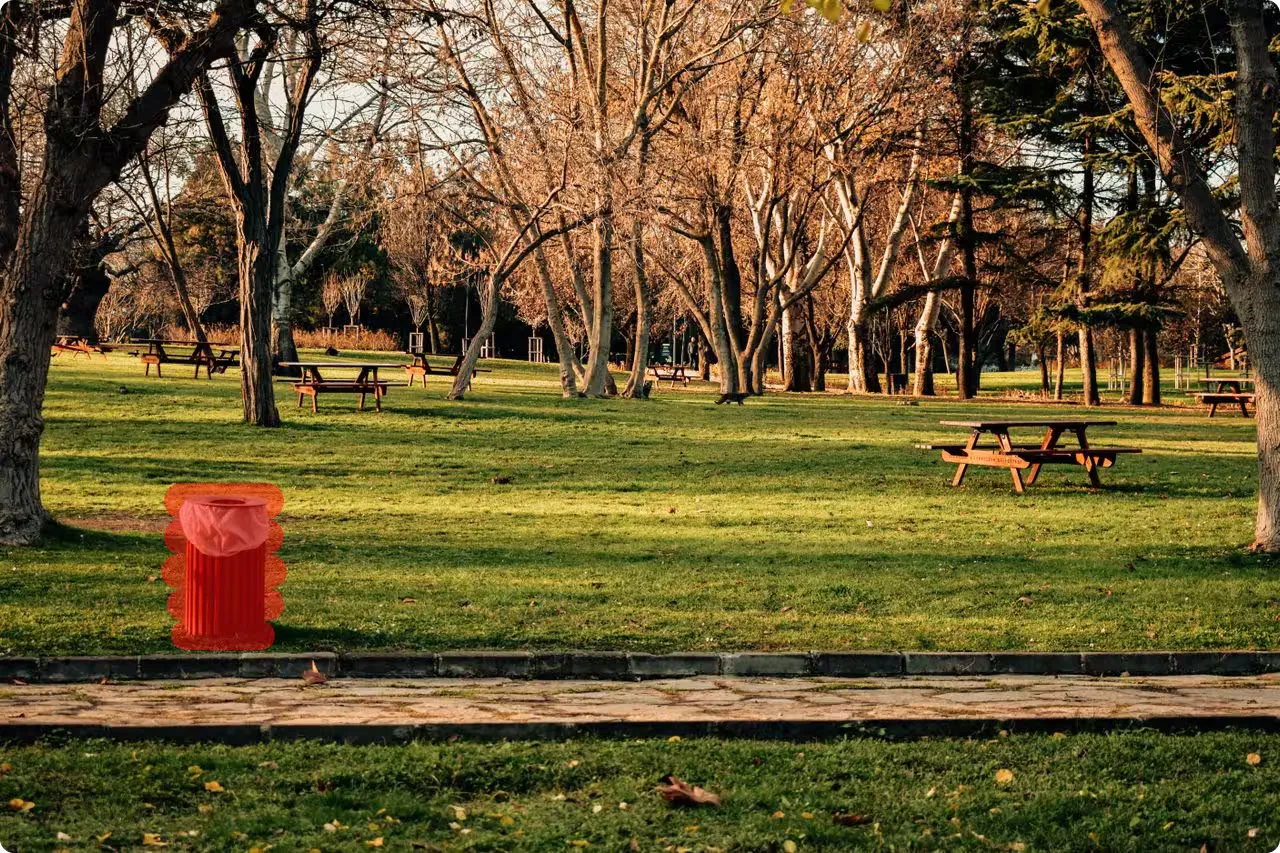
Using object removal responsibly
Editing your own photos is what this tool is for. Removing clutter from a listing, a stranger from a holiday shot, or a cable from a product image is ordinary retouching.
Some uses are not. Do not use it to remove watermarks, credits or licence marks from work you do not own. Do not alter photographs that serve as evidence, or news and documentary images where erasing unwanted elements would change what the picture reports — the freedom to erase unwanted elements ends where the record begins. Some jurisdictions and platforms also require disclosure when a published image has been materially altered.
You are responsible for holding the rights to the images you edit and for how you use the result. See our terms of use for the full position.
More AI image editing and photo tools
Removing a specific element is one job. These AI photo editing tools cover the rest of the edit.