What is an AI video watermark remover?
An AI video watermark remover is an online tool that automatically detects a watermark, logo or text overlay in a video and erases it from every frame, using generative AI to reconstruct the footage that was hidden underneath. You upload the clip and the tool does the rest — no selection, no mask — and it keeps its original framing and resolution, so the finished video looks like the watermark was never there.
That is what separates it from the two things people usually try first. Cropping cuts the watermark out of the frame and costs you composition and resolution. Blurring or covering it leaves an obvious patch that follows the viewer through the whole clip. AI removal regenerates the area instead, frame by frame, so nothing is lost and nothing is covered up.
Doing the same job by hand in a video editor means masking the mark and keyframing that mask as the footage moves — slow work that gets harder the longer the clip is. An AI tool tracks the watermark for you, which is why a removal that would take an afternoon in an NLE takes one upload here.
Last updated: August 25, 2026 · Runs in any browser · MP4 and MOV up to 100 MB
Built to erase watermarks from video, not hide them
Three things decide whether video watermark removal is convincing: how the gap is filled, whether the mark is tracked across the clip, and what quality you get back.
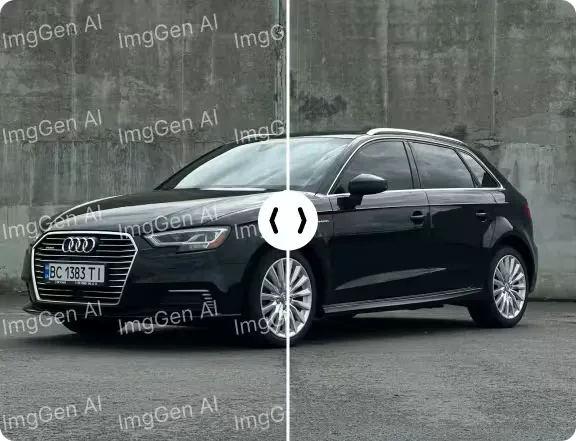
AI video inpainting, not a blur patch
The AI reads the pixels, texture and motion around the watermark and generates matching background in its place. You get a clean video instead of the blurred square or black box that crop-and-blur tools leave behind.

Finds the watermark for you, in every frame
Detection is automatic — you never draw a box or a mask. The AI locates the watermark and follows it through the clip, frame by frame, including logos that move, fade in and out, or sit over changing footage.
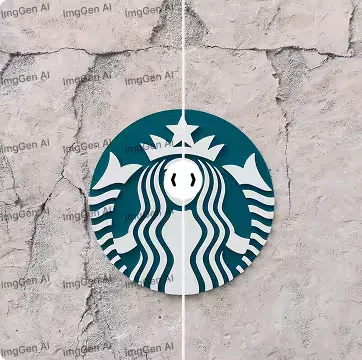
Original resolution, no new watermark
Your video comes back at the resolution you uploaded and ImgGen never stamps its own branding on the result — on any plan, including the free tier, with full commercial rights to what you export.
Erase the watermark and keep the rest of the frame
Only the area the watermark occupied is regenerated. Your framing, aspect ratio, colour and motion come back the way you uploaded them.

How AI removes a watermark from video
The first job is finding the watermark, and the tool does it without any input from you. A watermark is the part of the picture that refuses to change: while the footage moves, the same shape sits in the same place, frame after frame. Comparing frames makes that constancy measurable, which is how the region is located and turned into a mask — a map telling the model which pixels to discard and which to trust as context.
The inpainting model then generates new pixels for the masked region on each frame, conditioned on what surrounds it and on the frames either side. That temporal context is what stops the fill from shimmering: a still-image tool run frame by frame produces a patch that changes slightly every frame, and the eye reads that flicker immediately.
The reconstruction is composited back into the clip and re-encoded, so only the detected area changes. The mask is deliberately grown a little past the watermark's edge before the fill runs: a boundary drawn tight to the mark leaves a sliver of the original behind, and that sliver is what reads as a ghost outline.
The same technique powers our image tools: the image watermark remover for stills, and the AI object remover for anything else you want gone from a photo.
How to remove a watermark from video in three steps
Upload your clip, let the AI detect and erase the watermark, and download a clean video — no video editing experience required.
Upload your video
Drag in an MP4 or MOV file up to 100 MB, or pick one from your device. The editor opens with your clip loaded and the watermark remover ready.
Let the AI find and erase the watermark
Start the removal. The AI detects the watermark, logo, timestamp or text overlay on its own and erases it across the whole clip — no box to draw, no mask to paint, no keyframes.
Download your watermark-free video
The AI erases the mark across every frame and rebuilds the footage behind it. Download the clean video at its original resolution — with no ImgGen branding added.
What people remove: logos, text overlays, timestamps and channel bugs
The same upload-and-erase workflow cleans up almost any video you have the right to edit, from an old export with an editor's watermark to a screen recording branded by a free-tier capture tool.
Remove logos and text overlays from video
Erase a persistent corner logo, a burned-in channel bug or a text overlay you no longer need. These sit in a fixed position over changing footage, which is exactly the case AI video watermark removal handles best.
Clean up footage you own before an edit
Old exports often carry a watermark from whatever editor produced them. Remove the watermark from your own video once, then cut, colour-grade and publish from a clean master instead of working around a mark in every scene.
Marketing and content creation
Reuse a product clip across ads, a landing page and social without a stray watermark pulling focus. A watermark-free video looks intentional, and the same file works for every placement.
Licensed stock footage and preview clips
If you have licensed a clip and the terms allow it, remove the sample overlay to finish the edit. Check your licence first — a preview watermark you have not paid to remove stays where it is.
Screen recordings and demo videos
Screen-capture tools frequently brand their free-tier output. Strip that overlay from your own recording so a product demo or tutorial ships without another company's logo in the corner.
Timestamps, date stamps and camera burn-in
Camcorder date stamps and GPS burn-in sit in one corner for the whole clip. Erase them the same way you erase a watermark, and the footage under the stamp is rebuilt rather than covered up.
A video watermark remover that does not cost you something else
Most free video tools take payment in another currency — your resolution, a new watermark, or an install. Here is where ImgGen stands on each.
No cropping, so nothing is lost
Cropping a watermark out costs you framing and resolution on every frame. The AI removes only the watermark and leaves the full frame intact.
No watermark added to your export
Plenty of free video tools remove one watermark and add their own. ImgGen never brands a result, on any plan including the free tier.
Nothing to install
It runs in the browser. No desktop editor, no plugin, no render farm — upload an MP4 or MOV and the work happens on our side.
No frame-by-frame editing
Masking a logo by hand in an NLE means keyframes and hours. Letting the AI find and track it takes the manual work out entirely.
Works on moving and changing backgrounds
A static patch fails the moment the footage under it moves. Generative fill regenerates the area per frame, so pans, crowds and scenery hold up.
AI video watermark removal vs cropping, blurring and manual masking
The traditional options all trade something away. Cropping costs framing, blurring is visible, and masking by hand in a video editor costs hours of keyframing.
| ImgGen AI removal | Cropping | Blur or cover | Manual masking in an NLE | |
|---|---|---|---|---|
| Watermark actually gone | Yes | Yes | Hidden, still visible | Yes |
| Keeps the full frame | Yes | No | Yes | Yes |
| Original resolution | Kept | Reduced | Kept | Kept |
| Handles moving footage | Handled | Not applicable | Patch follows, still obvious | Only with keyframing |
| Effort for a 2-minute clip | One upload | Minutes | Minutes | Hours |
| Skill required | None | Low | Low | High |
| Software to install | No — browser | Usually | Usually | Yes — desktop editor |
| Cost | Free to start, $9.99/mo | Varies | Varies | Editor licence + your time |
Comparison reflects the typical outcome of each approach as of August 2026. NLE stands for non-linear editor, the category that includes Premiere Pro, Final Cut Pro and DaVinci Resolve.
Specifications of this video watermark remover
The limits that actually apply when you upload. If a clip is over the size cap, trim it or export at a lower bitrate first — you only need the section you are going to publish.
Removing one from an image instead? →| Supported formats | MP4, MOV |
|---|---|
| Maximum file size | 100 MB per upload |
| Typical clip length | 2–5 minutes of 1080p, bitrate depending |
| Output resolution | Same as the uploaded original |
| Branding on output | None, on every plan |
| Removes | Watermarks, logos, text overlays, timestamps |
| Watermark detection | Automatic — nothing to select or mask |
| Fill method | Generative AI inpainting, per frame |
| Cropping required | No — the full frame is kept |
| Commercial use | Permitted on all plans, free included |
| Runs on | Any modern desktop or mobile browser |
Tips for the cleanest video watermark removal
Removal itself is automatic, so results come down to what you feed it. These three habits fix nearly every disappointing outcome.
Upload the highest-quality source you have
Start from the original export rather than a re-compressed download. Compression artefacts around a watermark give the AI less clean detail to work from, and every generation inherits them.
Know which watermarks are the easy case
Detection works by finding what stays constant while the footage changes. A solid corner logo over steady footage is the easiest case; a faint, semi-transparent mark spread across fast-moving, busy scenery is the hardest.
Trim to the section you actually need
Cut the clip down before uploading. A shorter video stays under the size cap, processes faster, and keeps the AI focused on the frames you are going to publish.
Privacy and security when you upload a video
Your video is transferred over HTTPS and stored privately against your account. It is never published, listed, indexed or shared anywhere on ImgGen, it is never used to train AI models, and only you can reach it from your editing history.
You keep full commercial rights to everything you export. If a clip is confidential, trim it to the section you actually need before uploading — the less footage that leaves your machine, the better. How long uploads are retained, and how to request removal, is covered in our privacy policy.
Full details are in our privacy policy and terms of use.
Remove watermarks from video on your phone, tablet or laptop
This is a web tool, so the same editor opens in Safari on an iPhone, Chrome on Android, or any desktop browser. Upload straight from your camera roll — there is nothing to install and nothing to keep updated.
Sign in and your edits and remaining credits follow you between devices, so you can start a clip on your phone and finish it on a bigger screen. Processing happens on our servers, not on your battery.

Only remove watermarks from video you have the right to edit
This tool exists for footage you own or have licensed with permission to edit: your own exports, your screen recordings, client work you have been contracted to finish, and stock clips whose licence allows the sample overlay to be removed.
Some uses are not acceptable. Do not strip a copyright notice, credit or licence mark from someone else's video, and do not use it to redistribute paid or preview content you have not licensed. In many jurisdictions removing a rights-management mark is unlawful in itself, separately from the copying it enables.
You are responsible for holding the rights to the videos you edit and for how you use the result. See our terms of use for the full position.
More AI editing tools
Video watermarks are one job. These AI tools cover the rest of the edit, from stills to whole photo libraries.